Subscribe to AI newsletter
Your data is completely secure with us. We don't share it with anyone.
Convert video to JPG, PNG, or WebP frames directly in your browser with Video2Jpg. No uploads, no watermarks, and 100% free. Fast, private, and supports MP4, WebM, MOV, AVI, and MKV.
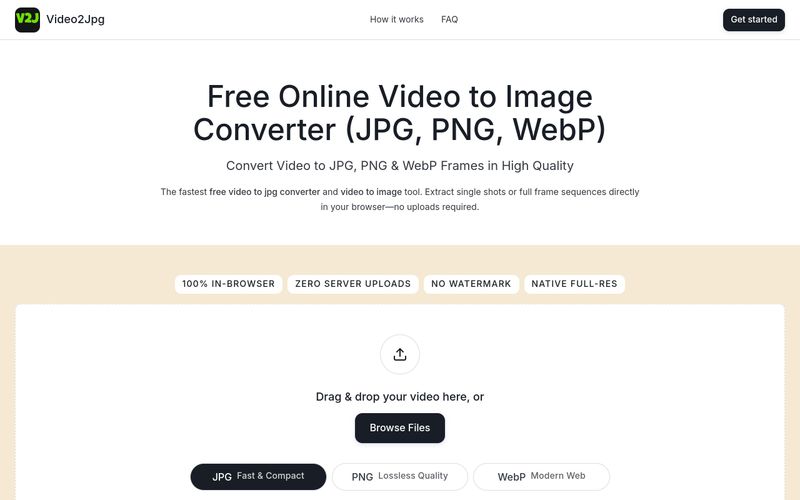
Video2Jpg is a free online tool that lets you convert videos into high-quality images directly in your web browser. Whether you need a single frame or a full sequence, Video2Jpg supports JPG, PNG, and WebP formats, all without uploading your files to any server. This means your videos remain private and secure, and you can process files of any size without worrying about upload limits.
The tool is designed for ease of use: simply drag and drop your video, choose your desired format, and extract frames at specific timestamps or set intervals for bulk extraction. Video2Jpg works with popular video formats including MP4, WebM, MOV, AVI, and MKV, and it’s compatible with both desktop and mobile browsers.
Key benefits include:
Video2Jpg is ideal for content creators, developers, and anyone who needs to quickly extract images from videos without compromising quality or privacy.
Using Video2Jpg is straightforward and requires no installation. Follow these steps:
For mobile users, open the website in your browser, tap 'Browse Files' to select a video from your photo library, and save the extracted frames directly to your camera roll.
Simply drag your video into the converter box above, select JPG as your output format, seek to the desired timestamp, and click download. You can also set interval capture to automatically extract every frame.
Open this webpage in Safari or Chrome on your mobile device, tap Browse Files to select a clip from your Photo Library, choose JPG, and save the extracted high-resolution frames directly to your camera roll.
Yes. Select PNG mode, set your extraction frequency (e.g., every frame or every second), and click Extract. The video to png converter compiles all full-resolution video to png frames into a single downloadable ZIP archive.
Yes. This is a 100% free video to jpg converter and multi-format image extractor. All processing runs entirely client-side using your browser's local resources—no video data is ever uploaded to external servers.
For support, you can contact the Video2Jpg team via email at staluxy@gmail.com. Additionally, the website provides a FAQ section and a contact page for further assistance.
Share practical notes and help others evaluate this tool.
No comments yet. Start the conversation.

An AI Convert Tool is a category of AI-powered conversion utilities designed to transform content from one format, style, or modality into another with high accuracy and efficiency. Within the broader classification of AI transformation tools, AI Convert Tools can handle text conversion (such as AI-to-human text, language translation, or tone rewriting), media conversion (text-to-image, text-to-music, image-to-video), and data format conversion (audio transcription, document restructuring, or code translation). By leveraging advanced machine learning models, an AI Convert Tool automates complex conversion processes, improves productivity, and ensures consistent output quality, making it an essential component in modern AI-driven workflows.
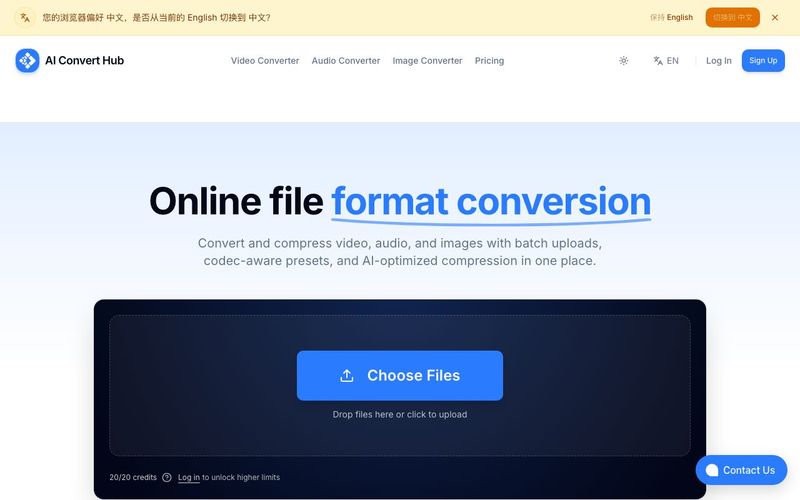
Batch convert and compress MP4/MOV, MP3/WAV, JPG/PNG/WEBP and 200+ formats with codec-aware presets, AI compression, and secure routing.
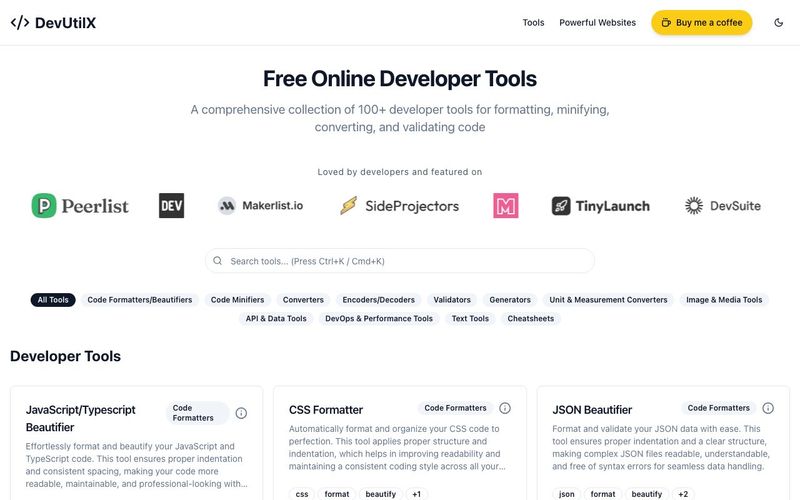
Access 100+ free online developer tools at DevUtilX. Format, validate, convert, and minify code instantly in your browser. No installation required.


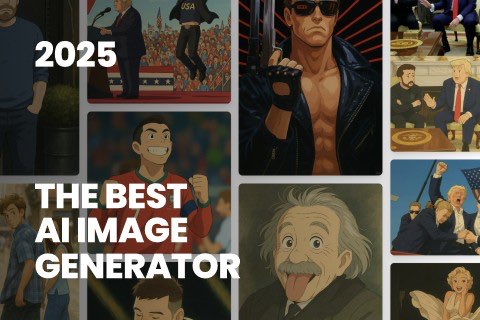
This comprehensive guide explores the best AI image generators available in 2026, highlighting their unique features, strengths, and ideal use cases. We'll dive deep into each tool's capabilities to help you identify which AI image generator best suits your creative needs.
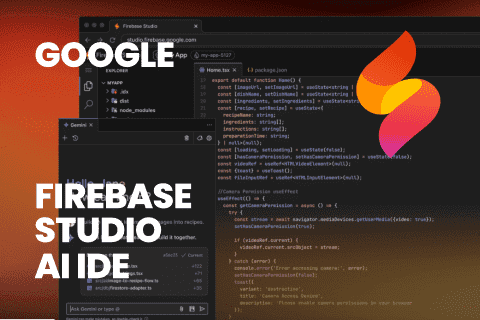
Google has just launched a powerful AI IDE code editor — now you can really vibe while coding
The best AI Model And AI Tools in 2026,The Most Popular Free AI Model And AI Tools.