AI 뉴스레터 구독
귀하의 데이터는 완전히 안전하게 보호됩니다. 어떤 누구와도 공유하지 않습니다.
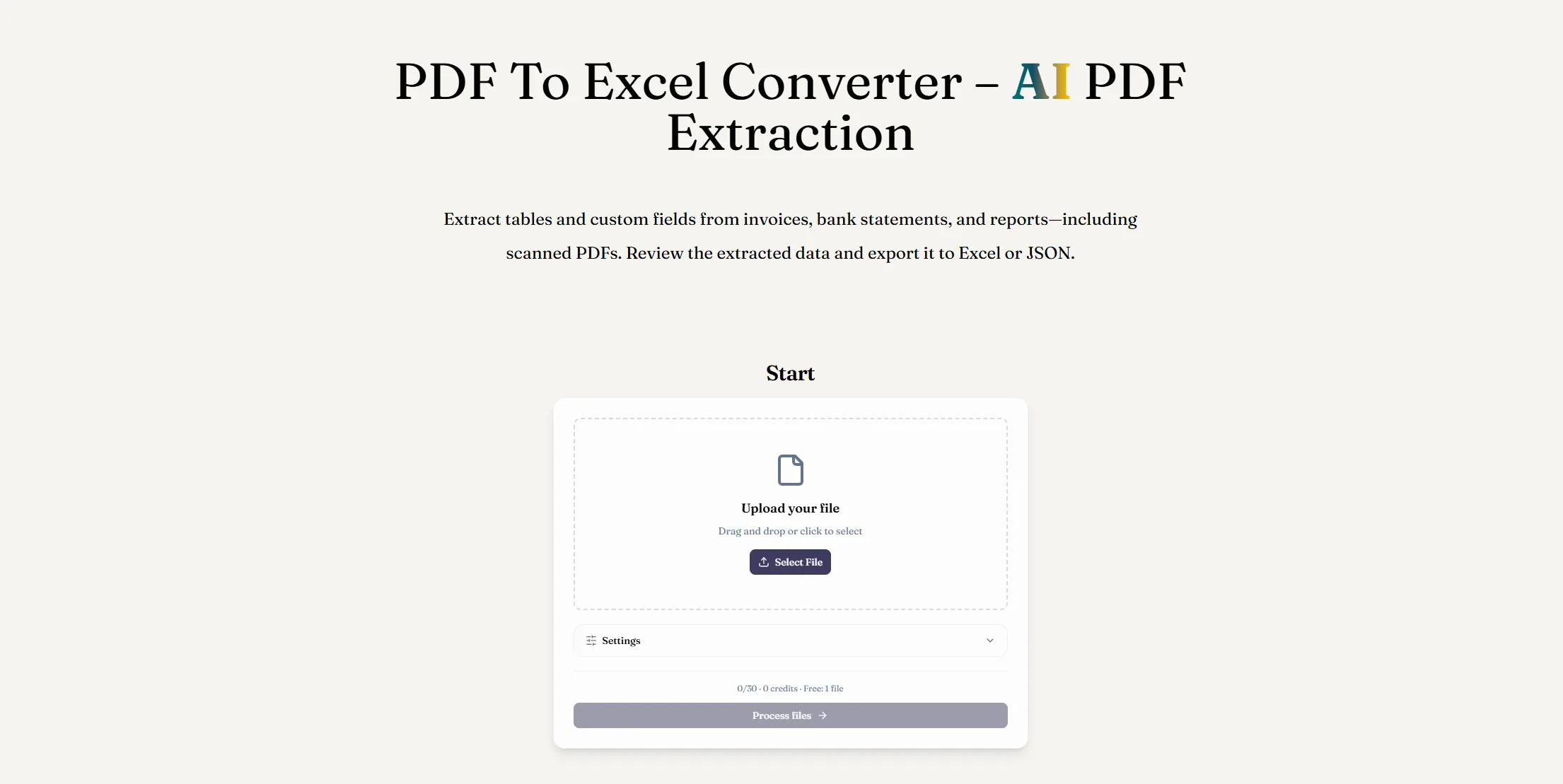
Upload your PDF
Add a digital or scanned PDF, such as an invoice, bank statement, receipt, or report.
Choose the data to extract
Select table extraction and describe the fields you need, such as invoice numbers, dates, or amounts. Save field preferences for similar documents.
Export to Excel
Compare the extracted tables with your PDF, then download an XLSX workbook. Make corrections and adjust number or date formats in Excel.
Converting PDF documents into editable spreadsheets doesn't have to be a time-consuming process. ReadyData makes PDF to Excel conversion easier with a simple, AI-powered workflow that helps users extract valuable information from invoices, bank statements, receipts, and business reports. As a practical AI tool within the growing category of AI Office Tools, it helps reduce manual data entry and makes document information more accessible for analysis, reporting, and daily business operations.
The process begins with uploading your PDF. Whether you're working with a digitally generated document or a scanned file, you can upload it directly to ReadyData for AI-powered extraction. This is particularly useful for professionals who regularly handle financial records, transaction histories, invoices, and other documents containing structured information. Instead of manually copying every row and column, you can let the tool identify relevant content and prepare it for further processing.
The second step is choosing the data you want to extract. ReadyData allows you to select table extraction and describe specific fields, such as invoice numbers, transaction dates, payment amounts, and totals. This flexibility makes the PDF to Excel workflow more practical because different documents often contain different types of information. For recurring tasks, you can save your field preferences as reusable templates, helping you process similar documents more efficiently in the future. This feature is especially valuable for accountants, administrative staff, small business owners, and finance teams dealing with repetitive paperwork.
Once the extraction is complete, the final step is exporting your results to Excel. Before downloading the XLSX workbook, you can compare the extracted tables with the original PDF to check whether the values, headers, and rows are aligned correctly. After exporting, you can make additional corrections in Excel and adjust number or date formats as needed. This review process is important because complex tables, unusual layouts, or low-quality scans may still require manual verification.
What makes ReadyData stand out among AI Office Tools is its straightforward approach to document conversion. You don't need an elaborate workflow to get started, and the extracted data can be used for spreadsheet calculations, financial analysis, record management, and reporting.
Overall, ReadyData is a useful AI tool for PDF to Excel conversion, combining a simple three-step process with customizable data extraction and editable spreadsheet output. If you frequently work with PDF documents and want to spend less time copying information manually, this tool offers a convenient way to streamline everyday office tasks and improve productivity.



This comprehensive guide explores the best AI image generators available in 2026, highlighting their unique features, strengths, and ideal use cases. We'll dive deep into each tool's capabilities to help you identify which AI image generator best suits your creative needs.

Google has just launched a powerful AI IDE code editor — now you can really vibe while coding
The best AI Model And AI Tools in 2026,The Most Popular Free AI Model And AI Tools.