訂閱 AI 電子報
您的資料完全安全。我們不會與任何人分享。
FireCut boosts your editing productivity by bringing AI seamlessly into your workflow, and speeding up all the repetitive tasks like cleaning up footage, adding zoom cuts, detecting chapters, and much more.
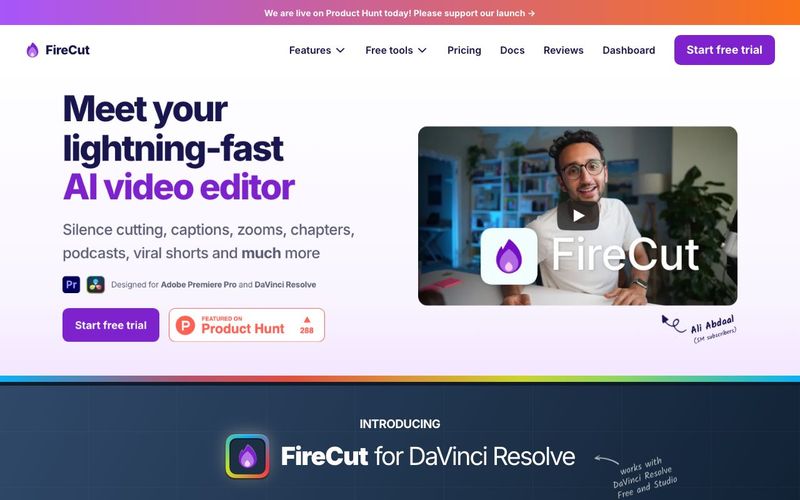
FireCut is a revolutionary AI tool designed to supercharge video editing workflows, making repetitive tasks faster and smarter. As a plugin for Adobe Premiere Pro and DaVinci Resolve, FireCut integrates seamlessly into your existing editing environment, acting as a co-pilot for creators who want to focus on creativity while letting AI handle time-consuming processes. Its capabilities in Video Generation and intelligent automation allow editors to produce professional-quality videos in minutes instead of hours.
At its core, FireCut automates the tedious parts of editing. It can quickly remove silences, detect chapters, eliminate repeated takes, and even filter out filler words or profanity. These features make it especially powerful for multi-track projects such as podcasts, interviews, and scripted content. By handling these repetitive tasks, FireCut allows creators to concentrate on storytelling, pacing, and creative enhancements.
One of FireCut’s standout features is its ability to add dynamic zoom cuts automatically, enhancing engagement in both long-form and short-form content. Editors can also generate captions instantly, find relevant B-roll, and select music or stock footage powered by Storyblocks—all without leaving the editor. Chapter detection and highlight creation further streamline post-production, making it easier to structure content for audiences and platforms like YouTube, TikTok, and Instagram Shorts.
Trusted by top creators and industry-leading brands, FireCut empowers video editors to save hours every day. Its intuitive AI-driven interface ensures that even complex multi-track edits are handled efficiently. From creating viral shorts to professional podcasts, FireCut accelerates the journey from raw footage to polished, shareable content.
With features like silence cutting, repetition removal, automated captions, zoom cuts, B-roll and music suggestions, chapter detection, and multi-track editing, FireCut is more than just an editor—it’s a full-fledged AI tool for modern Video Generation. By combining speed, precision, and creative automation, FireCut transforms how creators edit, producing professional-quality videos faster than ever before.
FireCut's main menu is the "home" page for the plugin. It shows:
The Settings menu is used for verifying your license key and managing any app-wide settings.
The Undo button gives you a way to roll back any changes made by a FireCut feature.
It will save a copy of your sequence before operations like removing silences. If you wish to undo the operation, just click on "Undo" at the top of FireCut and confirm. Please note: Using Ctrl+Z or Cmd+Z for rolling back FireCut operations is not recommended. The "Undo" button is the most reliable way of rolling back these changes.
The Reload plugin button is a convenient way to abort / reset the plugin in case you run into any issues.
You should not need to use this button often, but it can be helpful in case the plugin freezes / crashes, or is causing any issues with your timeline. It has the same effect as closing the plugin window and re-opening it from Window > Extensions > FireCut.
FireCut will show you when a version update is available.
Just click this button and FireCut will download the latest installer file (.exe or .pkg, depending on your platform). The installation works the same as how you installed FireCut the first time; it will just replace the old version. Run the installed and restart Premiere Pro to start using the latest version.
If this method doesn't work or you would prefer to use a different installation method, you can always find the latest FireCut installers in your dashboard.
FireCut is a plugin for Adobe Premiere Pro and DaVinci Resolve that automates the boring stuff so you can spend your energy on the interesting stuff. Our goal is to get you to your first cut in minutes, not hours.
With FireCut, you can remove silences from raw footage, detect chapters in your video, remove repetition (multiple takes of the script), edit multi-track videos like podcasts, and much more...
FireCut creates captions as PNG images. In order to edit any captions, simply select the clip(s) you want to edit, and then in FireCut click Add captions > Edit selected captions.
This will load up the selected captions into the editing panel. If you want to load the full transcript, just click Load full transcript.
You are now free to make any changes in this panel. To update the captions, click Add styled captions to sequence. This will add the updated captions in a new track to ensure your original captions are not over-written or affected in any way.
Your caption presets are stored in this file:
To share them between users/devices, just copy this file across to the new user, making a backup of the existing file if required.
No, your caption presets are saved to your device. They will be available even if you change your license key.
However, this means you will lose access to them if you change devices. To copy these presets to your new device, see the other FAQ above: "How can I share my Styled caption presets with others?"
Go to your dashboard and click on the Manage button shown next to your license key.
分享實用筆記,並幫助其他人評估這個工具。
尚無評論。開始對話吧。

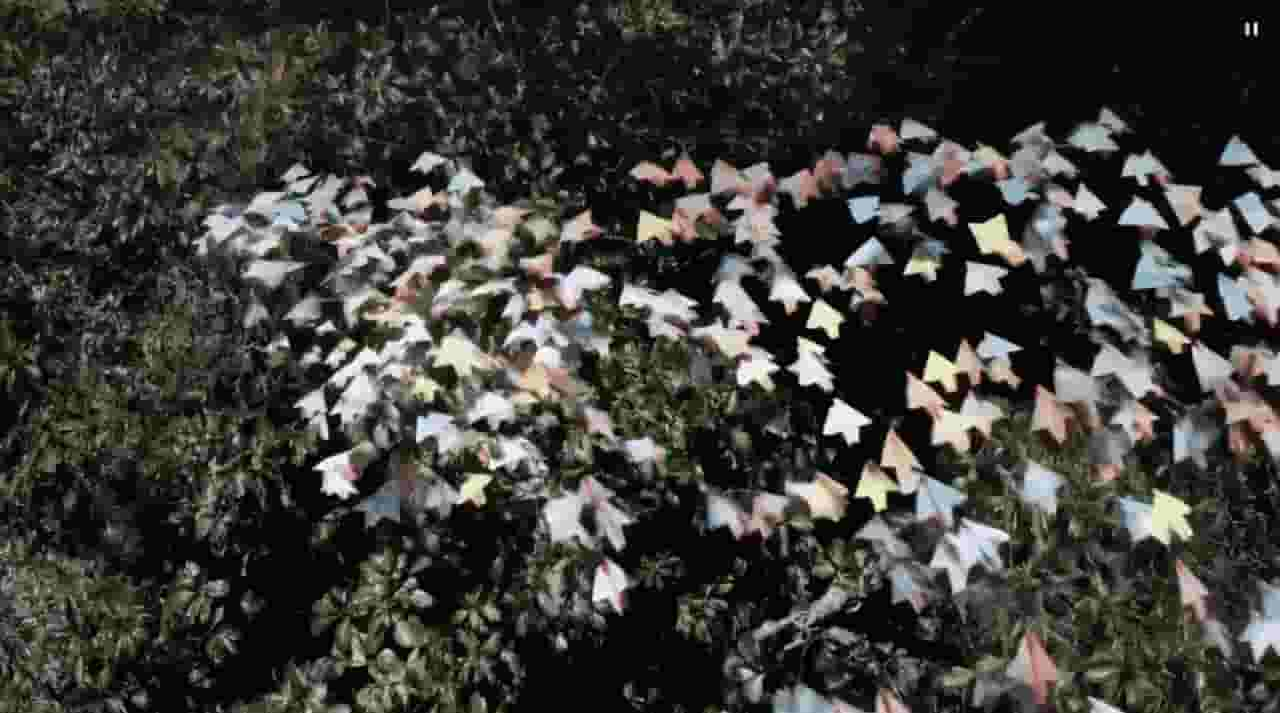
Sora is a large AI image-to-video model launched by OpenAI in 2026. It can create realistic and imaginative scenes based on text instructions.
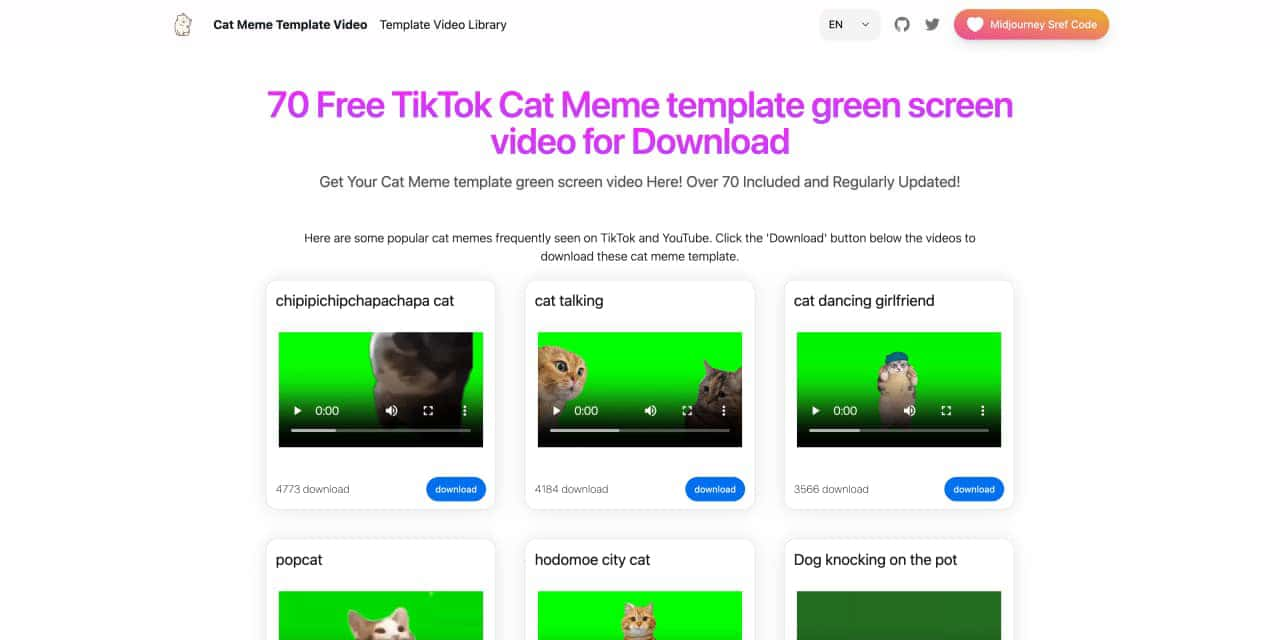
You can download the latest and most popular green screen cat meme template video featured on TikTok and YouTube. These materials are offered for free
Runway is an applied AI research company shaping the next era of art, entertainment and human creativity.

Use Viggle AI to create dynamic animations from images and text prompts. This guide covers its benefits, usage steps, and frequently asked questions.



This comprehensive guide explores the best AI image generators available in 2026, highlighting their unique features, strengths, and ideal use cases. We'll dive deep into each tool's capabilities to help you identify which AI image generator best suits your creative needs.
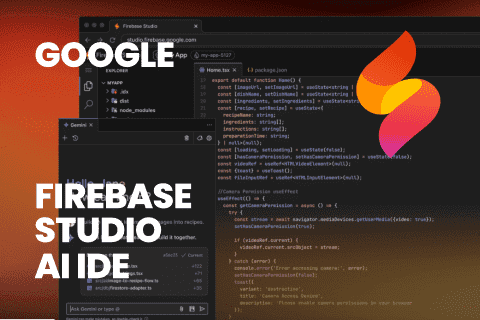
Google has just launched a powerful AI IDE code editor — now you can really vibe while coding
The best AI Model And AI Tools in 2026,The Most Popular Free AI Model And AI Tools.