Subscribe to AI newsletter
Your data is completely secure with us. We don't share it with anyone.
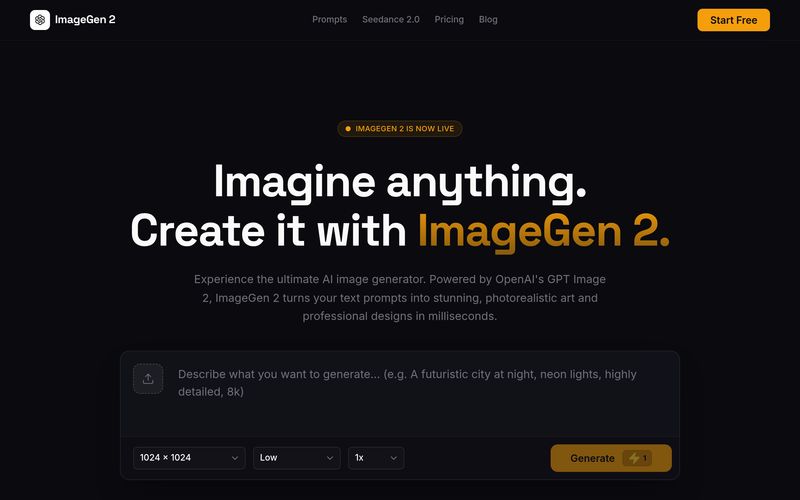
Describe what you want to see, including any text you want rendered perfectly on signs, labels, or UI elements.
Choose your desired image quality and select an aspect ratio or size up to stunning 4K resolution.
(Optional) Upload existing images to use advanced mask support for precise inpainting and outpainting.
Hit generate and watch as GPT Image 2 processes your complex instructions in seconds.
GPT Image 2 Review: An AI Tool That Makes Professional Image Generation Surprisingly Simple
When evaluating a modern AI tool for high-quality Image Generation, ease of use matters just as much as output quality. This is where GPT Image 2 truly stands out. Unlike many AI image platforms that overwhelm beginners with technical settings, GPT Image 2 offers an intuitive workflow that makes professional-level image creation accessible to everyone, from designers and marketers to casual creators.
The process begins with one of the most important steps: entering a prompt. With GPT Image 2, users simply describe what they want to see, whether it is a photorealistic portrait, a product advertisement, fantasy artwork, or a professional UI concept. One standout advantage of this AI tool is its advanced text rendering capability. Users can include exact wording they want displayed on signs, labels, packaging, or interface elements, and GPT Image 2 handles text generation with impressive accuracy, including both Latin and CJK languages. This significantly improves creative workflows for branding, e-commerce, and digital marketing projects.
Another reason why Image Generation with GPT Image 2 feels professional is the flexibility offered in the parameter settings. Users can easily choose image quality, aspect ratio, and resolution, with support reaching stunning 4K output. This level of customization ensures the generated visuals are suitable for everything from social media content to commercial print materials and product mockups.
The optional reference image upload feature adds another layer of creative control. By allowing users to upload existing visuals, GPT Image 2 supports advanced editing techniques such as inpainting and outpainting. This means creators can modify specific image areas, expand scenes naturally, or maintain visual consistency across projects without starting from scratch.
Finally, the generation process itself is remarkably fast. After clicking generate, GPT Image 2 processes even complex instructions in seconds, delivering highly detailed and visually polished results. For anyone seeking a powerful yet beginner-friendly AI tool for professional Image Generation, GPT Image 2 offers an impressive combination of simplicity, flexibility, speed, and creative precision.

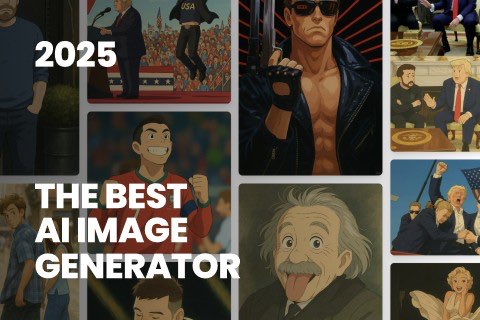
This comprehensive guide explores the best AI image generators available in 2026, highlighting their unique features, strengths, and ideal use cases. We'll dive deep into each tool's capabilities to help you identify which AI image generator best suits your creative needs.
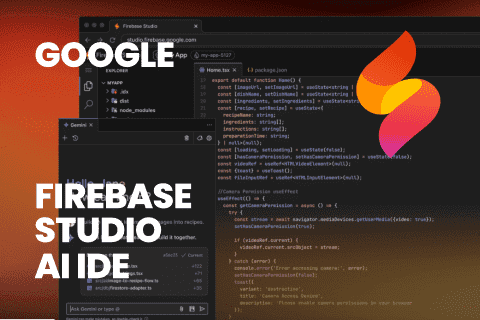
Google has just launched a powerful AI IDE code editor — now you can really vibe while coding
The best AI Model And AI Tools in 2026,The Most Popular Free AI Model And AI Tools.