订阅AI通讯
您的数据完全安全。我们不会与任何人共享。
Before starting, you need to prepare a suitable 3-second video clip.
How to Use Our Tool:
Access Our Video Converter
Visit our Video to LivePhoto page
Upload your video file (supports MP4, MOV, and other formats)
Select the Best Segment
Use the timeline to choose your desired 3-second clip
Preview the effect to ensure smooth, natural footage
Adjust aspect ratio (supports 1:1, 9:16, 16:9, etc.)
Download the Trimmed Video
Click the "Convert Video" button
Wait for processing to complete, then download the 3-second video file
Save the video to your iPhone camera roll
Start with our official companion app (built by the same team behind LivePhoto.video), then explore the other trusted options below if you need advanced editing or niche features.
Method 1: Using Lively (Official LivePhoto.video App)
Lively: Video to Motion Photo is the native iOS companion to our web trimmer, designed for a seamless "trim on web → convert on phone" workflow.
Why Choose Lively?
Built by the LivePhoto.video team for a frictionless pipeline
Precise trim, speed, and cover-frame controls before export
Exports high-resolution Motion Photos, looped videos, and GIFs without watermarks
Clean gallery to organize creations and share later
Works on iPhone/iPad running iOS 15 or later
Tap “New Project” on the Home Screen
Install Lively: Video to Motion Photo and open the app
On the home screen, tap New Project, then pick the 3-second clip you trimmed on LivePhoto.video (Photos, Files, or AirDrop)
Fine-Tune and Export
Use the timeline to make frame-level tweaks, adjust playback speed, or change the cover frame as needed
When you're happy with the preview, tap the export icon in the top-right corner and choose Save as Live Photo to send it to your camera roll
You can also export a looped video/GIF and keep every project organized inside Lively's gallery
Method 2: Using intoLive (Most Recommended Third-Party App)
intoLive is currently the most popular and stable video-to-LivePhoto app.
Open the intoLive app
Tap "Video to Live Photo"
Select your 3-second video from the camera roll
Edit and Adjust
Use the bottom slider to precisely select the video segment
Add filter effects (optional)
Adjust playback speed (optional)
Add text or stickers (optional)
Generate LivePhoto
Tap the "Make" button in the top-right corner
Choose repeat count (free version only allows "No Repeat")
Tap "Save Live Photo"
Set as Wallpaper
Find the generated LivePhoto in your camera roll
Tap the share button
Select "Use as Wallpaper"
Ensure the LivePhoto icon is enabled
Choose "Set Lock Screen" or "Set Both"
intoLive Limitations:
Free Version: Process videos up to 5 seconds, no repeat playback
Pro Version: Process videos up to 30 seconds, supports multiple loops
VideoToLive is the most comprehensive LivePhoto creation tool.
VideoToLive Features:
Supports video collaging
Built-in GIF maker
Advanced editing tools
Batch processing capabilities
Install the App
Download VideoToLive - Live Wallpapers
from the App Store
Select Function
Open the app and choose "Video to Live Photo"
Import your 3-second video file
Advanced Editing
Use video collage feature to combine multiple clips
Add transition effects
Adjust color and contrast
Export LivePhoto
Preview the final result
Tap export and choose LivePhoto format
Save to camera roll
Video to Live Wallpaper is perfect for users who need batch processing.
Main Advantages:
Supports multiple image sequences to LivePhoto
No duration limit (but actual playback ~1.5 seconds)
Works completely offline, protecting privacy
One-tap wallpaper setting
Download and Install
Download Video to Live Wallpaper
from the App Store
Batch Import
Select single video or multiple images
Supports batch selection from camera roll (up to 10 images)
Create LivePhoto
Set playback order
Adjust frame duration
Generate LivePhoto with one tap
Direct Wallpaper Setting
Set as lock screen wallpaper directly within the app
No manual camera roll operations neede
Regardless of which app you use, the steps for setting LivePhoto wallpaper are similar:
Find Your LivePhoto
Locate the generated LivePhoto in the iPhone Photos app
Confirm the "LIVE" indicator in the top-right corner
Set as Wallpaper
Tap the share button (square with arrow icon in bottom-left)
Scroll down to find "Use as Wallpaper" option
Tap to enter wallpaper settings
Enable Live Effect
Ensure the Live Photo circular icon at the bottom is lit
Long-press to preview the Live effect
Choose Application Scope
"Set Lock Screen": Lock screen only
"Set Home Screen": Home screen only
"Set Both": Both lock and home screens
Test the Effect
Lock your iPhone and long-press the lock screen to view Live effect
Adjust Force Touch pressure for optimal experience
LivePhoto.video is a highly intuitive AI tool designed for seamless image generation and LivePhoto creation, allowing users to convert videos into dynamic LivePhotos, animate static images, and produce captivating wallpapers with ease. Its workflow combines both web-based and mobile app solutions, ensuring flexibility for creators of all levels. Users begin by trimming their video to a precise 3-second segment using LivePhoto.video’s web trimmer, supporting formats like MP4 and MOV. The platform provides timeline previews, aspect ratio adjustments (1:1, 9:16, 16:9), and smooth playback to ensure the clip is ready for conversion.
After trimming, users can choose from multiple companion apps to complete the conversion. The official Lively app offers a frictionless pipeline from web trimming to LivePhoto export, allowing frame-level adjustments, playback speed modification, and high-resolution output without watermarks. For broader accessibility, intoLive provides a popular, user-friendly option with robust editing, filters, text overlays, and direct wallpaper settings for iPhones, making it a go-to solution for everyday users. Advanced users can leverage VideoToLive or Video to Live Wallpaper apps for batch processing, collages, GIF creation, and enhanced editing, catering to creative professionals who need high customization.
Setting the LivePhoto as a wallpaper is standardized across apps: users locate the generated LivePhoto in their iPhone Photos, enable the Live indicator, choose lock screen, home screen, or both, and test the animation effect. LivePhoto.video ensures every step—from trimming to final wallpaper—is smooth and optimized.
Overall, LivePhoto.video is a versatile and powerful AI tool that elevates static images and short video clips into interactive, visually engaging LivePhotos. Its combination of AI-driven animation, flexible conversion methods, and multi-platform support makes it an essential tool for content creators, social media enthusiasts, and anyone seeking dynamic, high-quality image generation for personal or professional use.
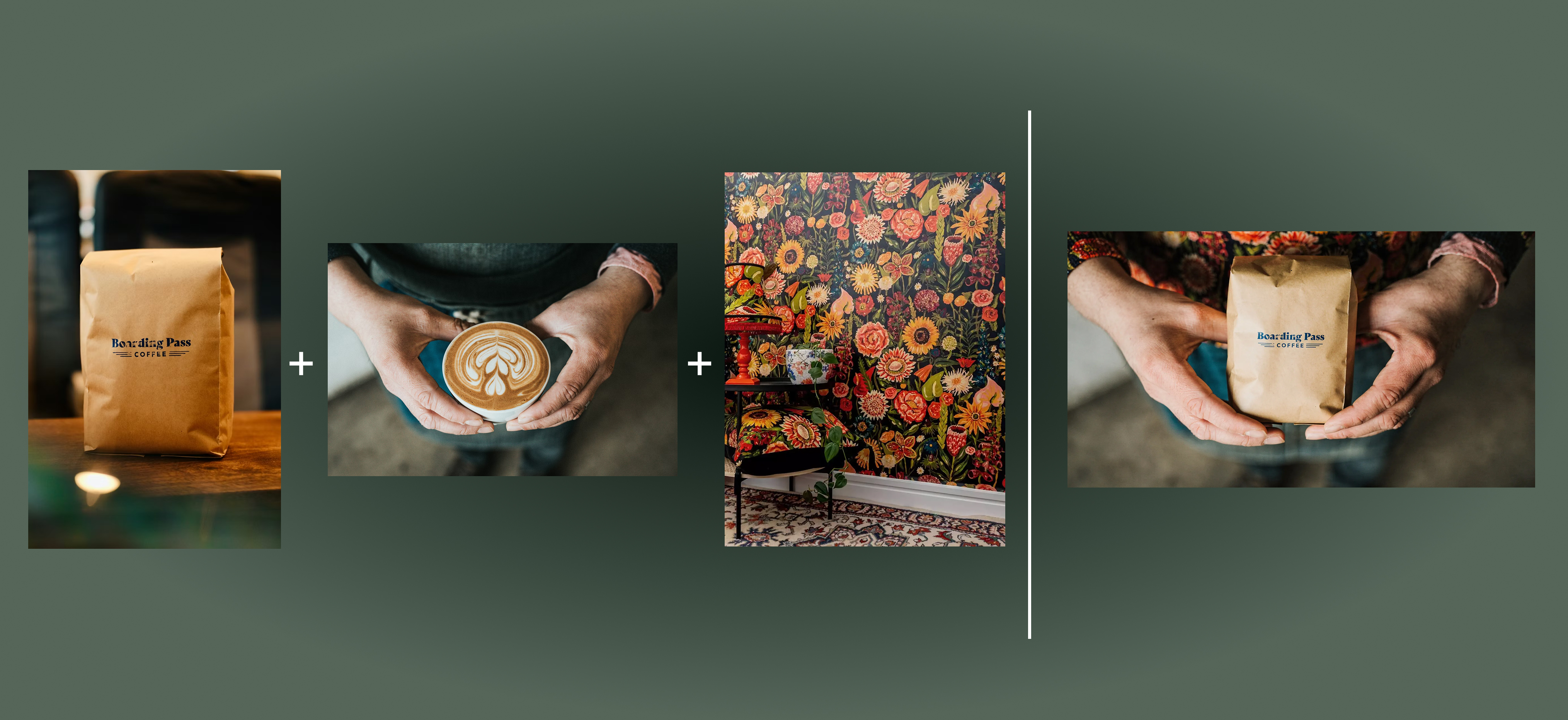

Flux 2 Max 是 Flux 2 系列中最先进的版本,专为追求高精度、真实感和生产级视觉输出的创作者而设计。作为一款高端的 AI 图像生成器(AI Image Generator) 与强大的 AI 图像编辑器(AI Image Editor) 的结合体,Flux 2 Max 将图像质量与一致性提升到了全新高度,非常适合专业级创作流程。
随着人工智能的飞速发展,11月成为了全年最具突破性的月份之一。从新一代图像模型和令人惊叹的视频工具,到能够编写代码、构建应用程序、清理杂乱数据,甚至从零开始创建完整学习中心的 AI 助手,应有尽有。无论你是创作者、营销人员、学生、开发者,还是仅仅是一位人工智能爱好者,本月的种种新发现都会让你重新思考人工智能的无限可能。

2025年最佳AI大模型与AI工具,最受欢迎的免费AI大模型与AI工具。

With the launch of the iOS 18.1 Beta version, registered developers can now experience some of the features of Apple AI, a cutting-edge addition to AI tools.