AI 뉴스레터 구독
귀하의 데이터는 완전히 안전하게 보호됩니다. 어떤 누구와도 공유하지 않습니다.
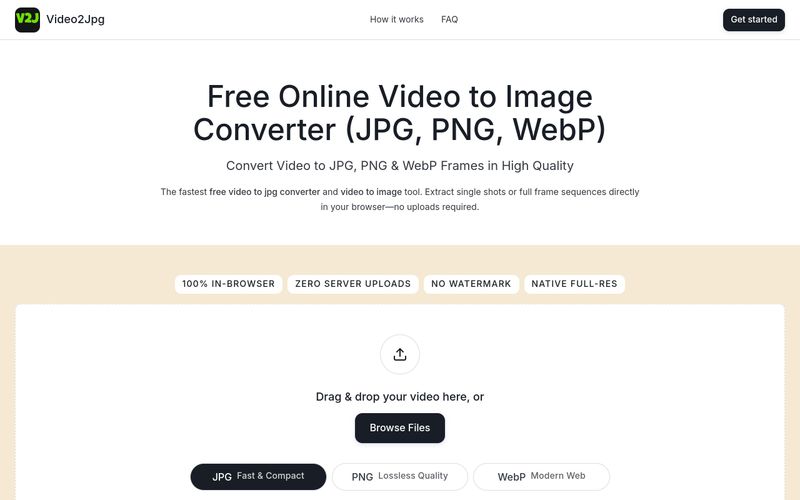
Using Video2Jpg is straightforward and requires no installation. Follow these steps:
For mobile users, open the website in your browser, tap 'Browse Files' to select a video from your photo library, and save the extracted frames directly to your camera roll.
Drag and drop your video, choose JPG/PNG/WebP and timing, then download individual frames or a ZIP of the sequence.


This comprehensive guide explores the best AI image generators available in 2026, highlighting their unique features, strengths, and ideal use cases. We'll dive deep into each tool's capabilities to help you identify which AI image generator best suits your creative needs.
Google has just launched a powerful AI IDE code editor — now you can really vibe while coding
The best AI Model And AI Tools in 2026,The Most Popular Free AI Model And AI Tools.