- Home/
- Asistencia de diseño Tools List/
- AI STL Generator/
- Cómo usar AI STL Generator
Cómo usar AI STL Generator

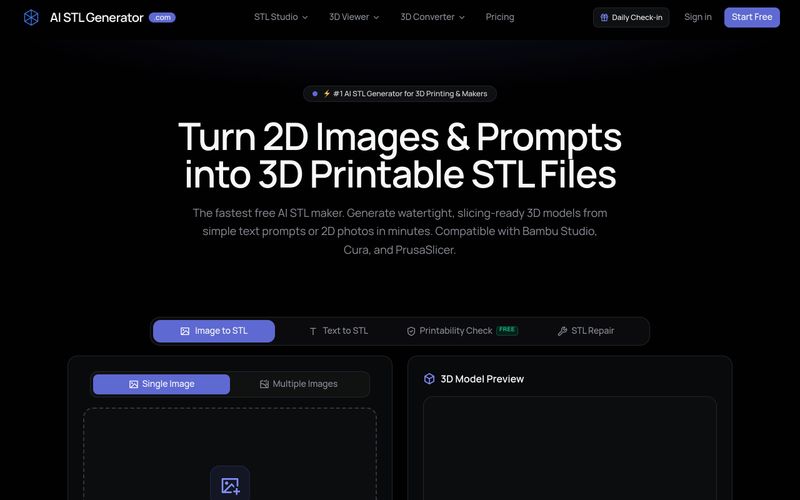
How to Use AI STL Generator
- Input Your Idea: Enter a detailed text prompt describing your desired object, or upload a clear 2D image (JPG, PNG, WEBP, or SVG). You can select the detail level (e.g., Low Poly, High Poly, or Functional).
- AI Mesh Generation: The AI engine analyzes your input and generates the 3D geometry. It automatically performs topology repair to ensure the mesh is watertight and manifold.
- Preview and Edit: Use the interactive 3D viewer to inspect the model. You can adjust mesh density, simplify polygons, or flatten the base using the built-in remesh tool.
- Download STL: Click the download button to get your STL file. The file is ready to import into slicing software like Bambu Studio, Cura, or PrusaSlicer.
- Slice and Print: Open the STL in your preferred slicer, apply your print settings, and send it to your 3D printer. No additional repairs needed.
For best results, use clear, high-contrast images and detailed prompts. The AI works best with objects that have recognizable shapes and structures.
Summary and Review:
Enter a text prompt or upload an image, let AI generate a watertight 3D model, preview and edit if needed, then download the STL and slice it for printing.

Noticias de IA
Ver todas las noticias →

The Best AI Image Generator in 2026: A Complete Guide
This comprehensive guide explores the best AI image generators available in 2026, highlighting their unique features, strengths, and ideal use cases. We'll dive deep into each tool's capabilities to help you identify which AI image generator best suits your creative needs.
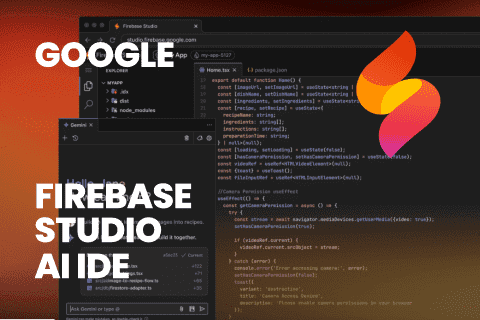
Firebase Studio,Google has just launched a powerful AI IDE code editor,Vibe Coding
Google has just launched a powerful AI IDE code editor — now you can really vibe while coding
The Best AI Model And AI Tools in 2026
The best AI Model And AI Tools in 2026,The Most Popular Free AI Model And AI Tools.